User Settings in DMS
Standard Operating Procedure:
User Settings in DMS
2.14.2026
Departments
- Human Resources
Purpose
To establish guidelines for the addition and deactivation of users in DMS.
Definitions
DMS: Data Management System
Procedures
Creating a User
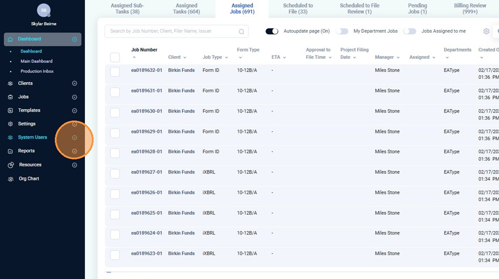
Navigate to “System Users” dropdown on the main menu.
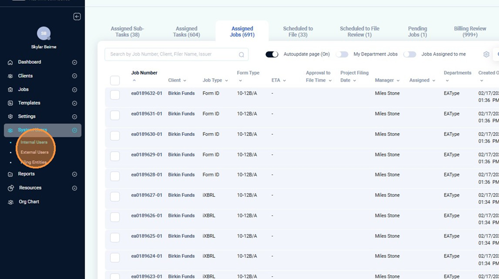
Click "Internal Users."
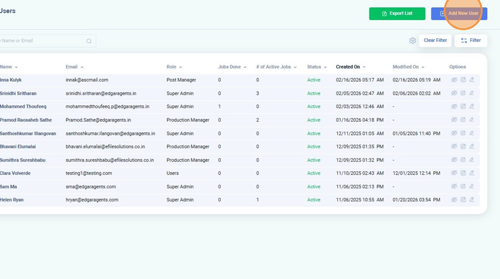
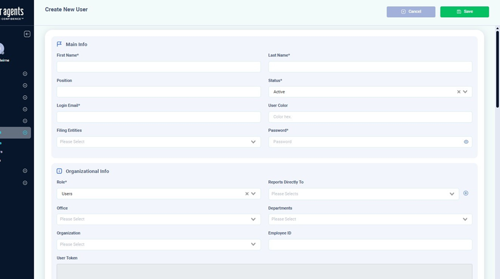
Click "Add New User" on the top right of the page.
Add the login email first. This is challenging to change later, so it is important to confirm and enter the email correctly.
Add First Name, Last Name, and Title of the user. Ensure you select the correct role, as it will affect user permissions and access.
Set up a simple password for the user’s initial login. They can change the password later.
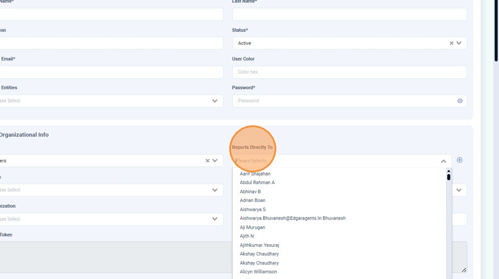
Select who the user reports to from the “Reports Directly To” dropdown. Click the “+” to add another “Reports Directly To,” in case the user reports to multiple managers.
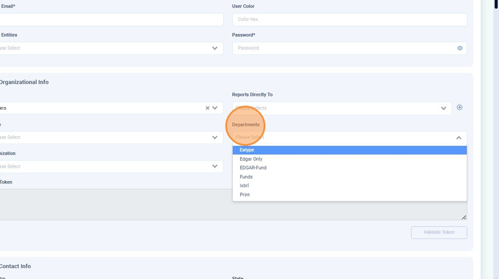
Select the department(s) that the user will be working within from the “Departments” dropdown.
Select which office the user works from.
Add Employee ID (if applicable).
Depending on the role, add an Outlook email to send from.
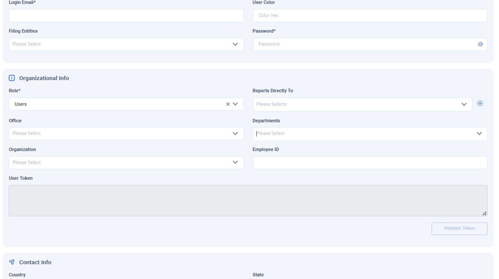
Click "Save."
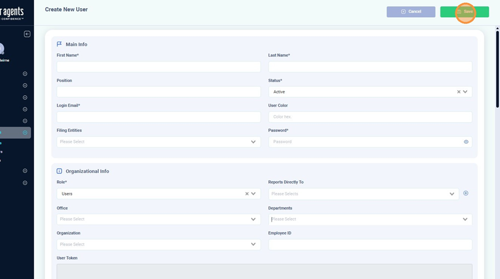
DMS will send an automatic email to the new user. Send a follow-up email to the user with the credentials they will need for login.
If a user’s role changes, you must change the title name, role, and who the user report to, if applicable.
Deactivate User
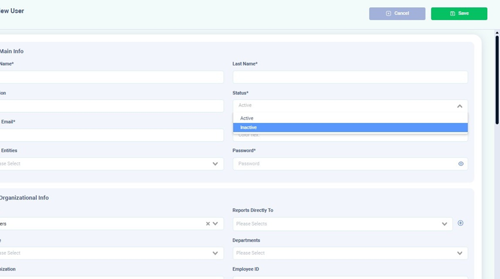
From the "Edit User" page, click on the Status dropdown and choose "Inactive."
OR, click the "Deactivate Account" icon from the list of users on the System Users page.
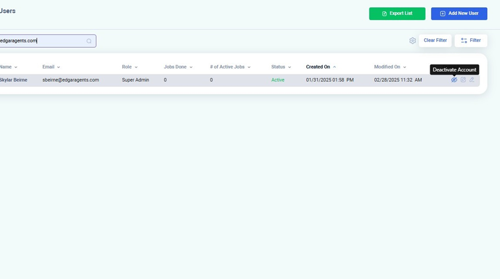
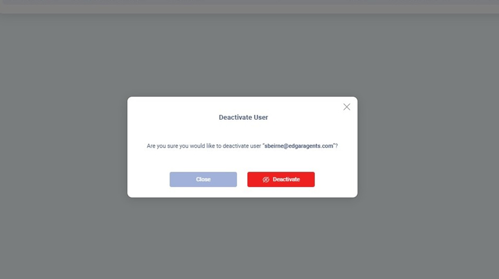
You will be asked if you would like to deactivate the user. Select "Deactivate."